Search This Blog

Showing posts with label Eclipse. Show all posts

Tuesday, March 19, 2019

How to open multiple instance of an application in MAC


Recently looking option to open multiple Eclipse instances in MAC ( with different workspace).

I did not find just single click option then after some search following command  ( from Terminal) did trick to me :


Applications > open -n -a "APPLICATION NAME"


Ex : open -n -a Eclipse.app


Cheers,

Kapil

Thursday, October 22, 2015

Solved : Eclipse executable launcher error: Unable to locate companion shared library

Recently i was encountered with following errorafter extraccting a ZIP file

Eclipse executable launcher error: Unable to locate companion shared library

To solve this problem that extractor did not extract the content in proper way due to long path of zip file and content within. 

I have reduced the path of zip while extract and it got fix.

Cheers

Kapil 


Saturday, October 3, 2015

Install Gradle and Setup with Eclipse


Step 1 : Install Gradle from the following link:
https://gradle.org/gradle-download/
(binary or full)

Step 2: set gradle path at environment Path variable  :


Step 3 : Open  command Prompt and run command "gradle" , it should prompt following message


Setup Gradle with eclipse :


Step 1 : Click Help - > Install Software ->

https://github.com/eclipse/buildship/blob/master/docs/user/Installation.md

Eclipse Version


Mars (4.5)

release

http://download.eclipse.org/buildship/updates/e45/releases/1.0


Luna (4.4)

release

http://download.eclipse.org/buildship/updates/e44/releases/1.0


Kepler (4.3)

release

http://download.eclipse.org/buildship/updates/e43/releases/1.0


Juno (4.2)

release

http://download.eclipse.org/buildship/updates/e42/releases/1.0


Indigo (3.7)

release

http://download.eclipse.org/buildship/updates/e37/releases/1.


Helios (3.6)

release

http://download.eclipse.org/buildship/updates/e36/releases/1.0


Step 2 : Click Next -> Until Finish

Step 3 : Click Window -> Preferecne - > Gradle ( to view gradle setting)

You are done

Cheers ,
Kapil

Sunday, September 27, 2015

Tips : How to install Maven plugin with Eclipse


Step 1 : Open Eclipse - > Goto Help - Click on "Install New Software"
Step 2 :
Copy following URL (If need to get the latest version ) :
http://download.eclipse.org/technology/m2e/releases
Other wise your can choose option with following URL as well for compatibale versions :
i.e : http://download.eclipse.org/technology/m2e/releases/1.3

Step 3: Enter and select check boxes  and click next and Done.

Cheers
Kapil

Saturday, March 9, 2013

Eclipse : failed to load the jni shared library and returned exit code 13


It's been a long time to write in something in blog due to bust schedule and hard disk crash  , today I got a time re setup my system ...  While setting up jdk and eclipse today I encountered two problems :

1. After installing JDK on my 64 bit machine when i clicked on eclipse it prompted me following message :
         "failed to load the jni shared library"

to fix this I figured out that my eclipse.ini file has old version (1.5) and i have installed 1.6 
  Solutiong which found as below :  make an entry -vm
C:\Program Files\Java\jdk1.6.0_18\bin\javaw.exe (below is copied version to see where i made this entry)


-startup
plugins/org.eclipse.equinox.launcher_1.2.0.v20110502.jar
--launcher.library
plugins/org.eclipse.equinox.launcher.win32.win32.x86_64_1.1.100.v20110502
-product
org.eclipse.epp.package.java.product
--launcher.defaultAction
openFile
--launcher.XXMaxPermSize
256M
-showsplash
org.eclipse.platform
--launcher.XXMaxPermSize
256m
--launcher.defaultAction
openFile
-vm
C:\Program Files\Java\jdk1.6.0_18\bin\javaw.exe

-vmargs
-Dosgi.requiredJavaVersion=1.5
-Xms40m
-Xmx384m


2. Even after this after click on eclipse exe , I found another error  " returned exit code 13" and cause is as below :

version of jdk was of 32 bit while of eclipse 64 bit .. I have installed 64 bit version of JDK then to fix this .

Now my eclipse works smoothly with new (JDK1.6) version :). Happy moment for me . 

Cheers 

Kapil 


Wednesday, May 25, 2011

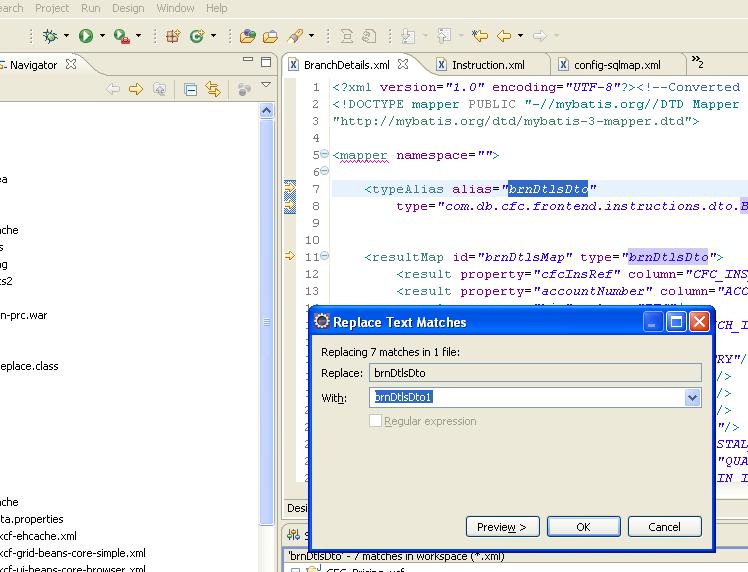
Tips : How to replace text in multiple file with Eclipse ??


Use following steps to do replacement in multiples files in eclipse

Step1 :
Click on search - > file (to open search dialog window)
Step 2 : Type text in containing box  then type pattern in “file name patterns”  and finally click  on “Replace” button


Step 3: a Replace dialog window will open if text found in any of the file
Step 4: Type a replace text and click ok


Final Step :
After click ok .. all text will be replaced in all files which are searched based on patterns .

Cheers

Kapil

Popular Posts